North South University Library subscribes to Turnitin with Feedback Studio, a comprehensive tool designed to maintain academic integrity and support quality research and writing for NSU faculty, students, and researchers. Turnitin helps ensure originality by generating similarity reports that identify matched content from extensive databases, academic publications, and web sources. It also includes an AI writing detection feature to evaluate the authenticity of written work, addressing concerns about the use of AI-generated content in academic submissions.
Beyond plagiarism detection, Turnitin offers powerful teaching and assessment tools. The integrated Feedback Studio enables faculty to provide detailed feedback on student submissions, use grading rubrics, and allow for iterative resubmissions to improve writing quality. This platform not only safeguards academic honesty but also enhances the learning experience by fostering proper citation practices and effective writing skills.
Turnitin at NSU is an essential resource for promoting originality, upholding ethical academic standards, and equipping students with the tools they need to succeed in their academic journey.
What is Turnitin?
Turnitin is a leading academic integrity tool designed to help educators and students ensure originality in academic writing. It compares submitted documents against a vast database that includes student papers, scholarly publications, and web content to identify any similarities. This process generates a Similarity Report, highlighting matched text and providing links to the original sources, enabling users to check for proper citations and avoid plagiarism.
Beyond similarity detection, Turnitin offers advanced features to enhance teaching and learning. It’s integrated Feedback Studio allows instructors to give detailed comments, use grading rubrics, and track revisions, creating opportunities for students to improve their writing. Additionally, Turnitin includes AI writing detection, which helps identify content generated by artificial intelligence tools, an essential feature in today’s academic environment.
Why is Turnitin Important for NSU Students and Faculty?
Turnitin plays a critical role in promoting academic integrity and improving the quality of academic writing at North South University. It ensures that both students and faculty adhere to ethical writing standards and helps maintain the university’s reputation for excellence in research and education.
- For Students: Turnitin empowers students to develop strong academic writing skills by identifying areas where proper citation and paraphrasing are needed. The Similarity Report highlights matched text, enabling students to revise their work and reduce the risk of plagiarism. Additionally, features like AI writing detection help students understand the importance of producing original content in an era where AI tools are widely accessible. Turnitin also provides opportunities for learning through feedback, as instructors can use the Feedback Studio to comment on submissions, provide rubrics, and allow resubmissions for improvement.
- For Faculty: Turnitin assists faculty members in efficiently managing academic integrity across their courses. The platform helps instructors detect potential plagiarism, ensure proper citation practices, and evaluate the authenticity of student work through similarity and AI reports. With Feedback Studio, faculty can streamline grading by adding comments directly on submissions, applying rubrics for consistent assessment, and tracking revisions when resubmissions are allowed. This not only saves time but also enhances the teaching process by providing actionable feedback to students.
- Institutional Benefits: For NSU as an institution, Turnitin safeguards the quality of academic output by reducing plagiarism and upholding ethical research practices. It helps the university maintain high academic standards, which is vital for global recognition and accreditation. By integrating Turnitin into teaching and assessment, NSU fosters a culture of honesty and originality in research and learning.
Turnitin Instructor Account for Faculty Members:
All full-time faculty members at North South University are eligible for a Turnitin Instructor Account for the duration of their employment at the university. For Part-Time and Visiting Faculty members, Turnitin access is valid for the current semester only. If these faculty members continue teaching in subsequent semesters, they must renew their Turnitin Instructor Account at the start of each new semester by emailing the NSU Librarian.
1. Request and Activate your Turnitin Instructor Account (For Faculty Members)
Faculty members who need a Turnitin Instructor Account should email the NSU Librarian. The email must include the following details:
- Full Name
- Designation
- Department
Once the request is received, the NSU Library will verify your information. After verification, you will receive a confirmation email along with the Turnitin account activation link. Follow the instructions in the email to activate your account and set up your password.
2. Turnitin Account Renewal for Part-Time and Visiting Faculty
For part-time and visiting faculty members at North South University, Turnitin access is granted only for the current semester. If these faculty members continue teaching in subsequent semesters, their accounts must be renewed at the start of each new semester. To renew the Turnitin Instructor Account, faculty members should send an email to the NSU Librarian, clearly mentioning their full name, designation, and department.
It is important to note that accounts not renewed will be deactivated after the semester ends. Therefore, timely renewal is necessary to ensure uninterrupted access to Turnitin’s features, including Feedback Studio, originality reports, and grading tools.
Turnitin Student Account Registration
Although the NSU Library subscription includes a significant number of Turnitin student accounts, the library itself does not assign these accounts directly to students. Instead, students can only access Turnitin through their respective course faculty. Faculty members with Turnitin Instructor Accounts can enroll students into their classes, giving them the ability to submit assignments, theses, research papers, and other academic work directly through the platform.
In addition, faculty have control over the features available to students. They can permit students to resubmit their work if revisions are needed and may also grant access to similarity reports directly on the student dashboard. This process not only ensures academic integrity but also creates opportunities for students to learn from feedback and improve their writing before final submission.
Turnitin Usage Instructions:
Turnitin instructors/users are requested to follow the instructions mentioned below (recommendations had been suggested by the subcommittee for ‘Turnitin use’ and the last three years’ usage pattern).
- Faculty members of DEML, who are teaching ENG105 and BA and MA courses (200 level and above), as well as faculty members of other departments/institutes, may only upload their student’s final term/research papers/printed reports on Turnitin.
- Multiple submission of the same paper/report is not acceptable; this will be allowed only once.
- Class names should be created mentioning the course name and section. Previous semester classes must be removed; if not removed, the Library will have the authority to remove those.
- Core Faculty members may use Turnitin prior to the final submission of their research works/ articles/project reports only once. Faculty members can use the ‘Grammarly Premium’ version for subsequent checking if needed.
- As all statistics of Turnitin usage are available through Turnitin Admin Panel; the Library will send report/inform the faculty members and the Chair of the respective departments about their Turnitin use periodically.
- If the Turnitin usage crosses the license limit, Turnitin instructors’ accounts would be blocked from the top submitter to low.
- Library Turnitin Team will always monitor the submission/usage/misusage and regularly send reports to the higher authority to maintain the subscribed license and fees.
We seek the kind cooperation of all Turnitin users/instructors for a sustainable subscription to Turnitin at NSU.
 Turnitin File Upload Instructions for NSU Instructors
NSU Library
This guide provides step-by-step instructions for NSU instructors on how to create a class and upload assignments in Turnitin for plagiarism checks (Similarity Index) and AI score assessments.
Step 1: Create a New Class
i. Before you can create a class, make sure your instructor account is activated. Now log in to your Turnitin account and add a new class. Click on the “Add Class” button on your dashboard.

ii. Configure class settings:
- Class Type: Select “Standard” from the dropdown menu.
- Class Name: Enter a name for your class.
- Enrolment Key: Choose a number or text that will serve as the enrolment key. This key will be used by your students to enroll in this class.
- Subject Area: Select the appropriate subject from the dropdown menu.
- Student Level: Choose “Undergraduate” or the relevant student level.

iii. Submit the form. After entering all the details, submit the form to create your class.

You can share your Class ID: XXXXXXXXX, and Enrollment Key: XXXX with your students. This will allow them to join your class and directly upload their assignments to your Turnitin class.
Step 2: Adding an Assignment to the Class
i. Navigate to your class page. Find the class you just created in your account dashboard.
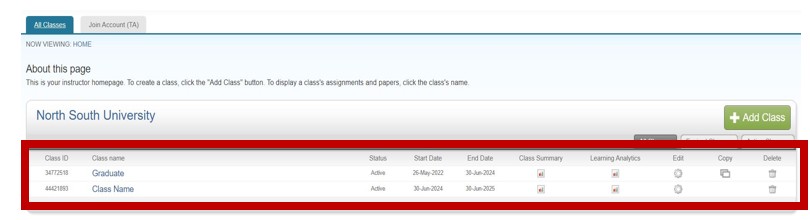
ii. Add an assignment. Click on “Add Assignment” within your class settings.

iii. Set Assignment Details:
When creating an assignment in Turnitin, you will find the “Assignment Details” section where key settings can be customized. The following options should be adjusted according to your course requirements:
- Assignment Title and Instructions: Enter the assignment title and provide any necessary guidelines or instructions for your students.
- Grading and Feedback: Set the maximum grade for the assignment to define the scoring scale.
- Due Date: Make sure the due date is set on or before the class end date. It must not exceed the duration of the class.
- Submission Settings: Configure additional options such as allowing late submissions, enabling resubmissions until the due date, or permitting unsupported file types.
These settings ensure that assignments are properly structured, deadlines are clear, and submission preferences are tailored to the needs of both faculty and students.
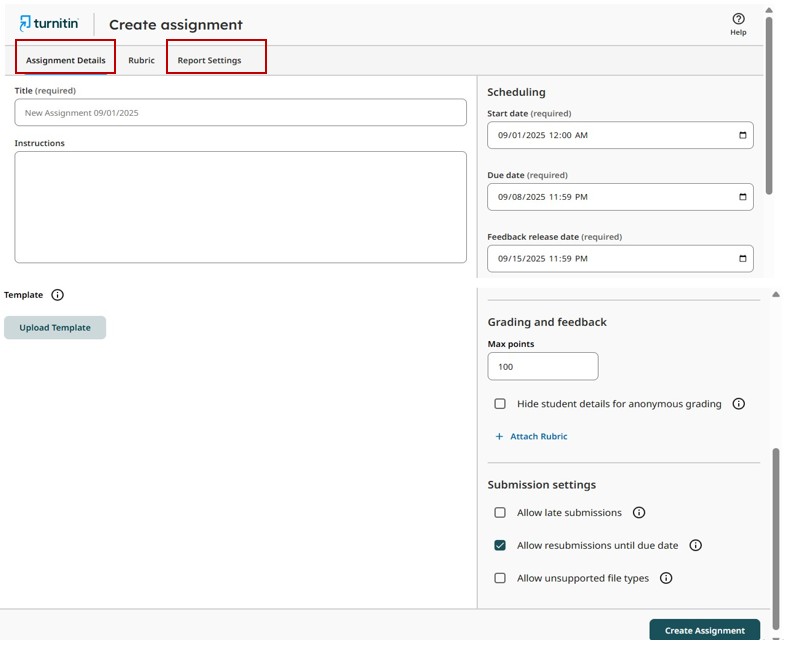
iv. Adjust Report Settings:
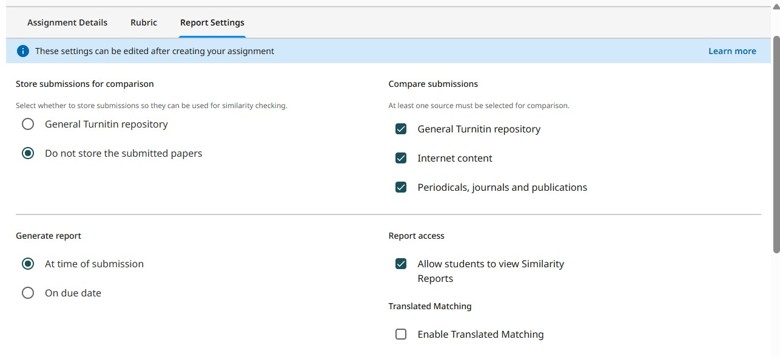
After setting up the assignment details, the next step is to configure the Report Settings. These settings determine how Turnitin generates and presents similarity reports. To begin, click on the “Report Settings” tab and adjust the following options:
a. Store Submissions for Comparison: You can choose between two repository modes:
- General Turnitin Repository: The submitted paper will be stored in Turnitin’s database. Any future submission of the same work will show similarities with the stored version.
- Do Not Store the Submitted Papers: The submission will not be saved in the repository, meaning it will not be matched against itself in the future.
[For most cases, it is recommended to use the “Do Not Store the Submitted Papers” option, especially for draft submissions.]
b. Compare Submissions: This option determines which sources Turnitin will check against. It is recommended to enable all three sources-student papers, internet sources, and academic publications– for the most accurate and comprehensive similarity report.
c. Generate Report: Here, you can set when the similarity report will be generated (immediately after submission, on the due date, or with resubmission rules). You can also decide whether students are allowed to view their similarity reports directly from their dashboard, giving them the chance to learn and revise.
d. Exclusions: In this section, you can specify whether to exclude bibliographic materials and exclude quoted materials from the similarity check. Adjusting these settings ensures more accurate results, focusing on the originality of the student’s own writing rather than cited references.
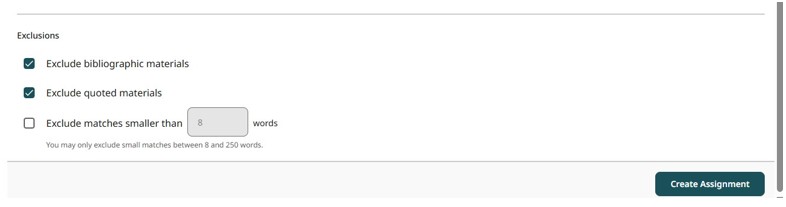
Once all settings are configured, click the “Create Assignment” button to finalize and save the assignment setup.
Step 3: Upload Files for Plagiarism Check
i. Add a New Student to Your Class: To upload a file to Turnitin for a plagiarism check and AI score assessment, you must first add a student to your class.

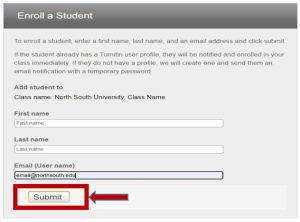
ii. Uploading Papers to Turnitin: Once you have added students to your Turnitin class, assignments can be uploaded in two ways: either students can upload their papers directly from their own Turnitin student dashboards, or instructors can upload documents on behalf of students. Both methods allow submissions to be checked for plagiarism and AI similarity scores.

If you wish to upload a document yourself (either your own or on behalf of a student), start by opening the assignment that has already been created in your Turnitin class. Here, you will see a list of the students enrolled. Next to each student’s name, click on the “More options” menu on the right-hand side. From there, select “Submit File” to upload the document.
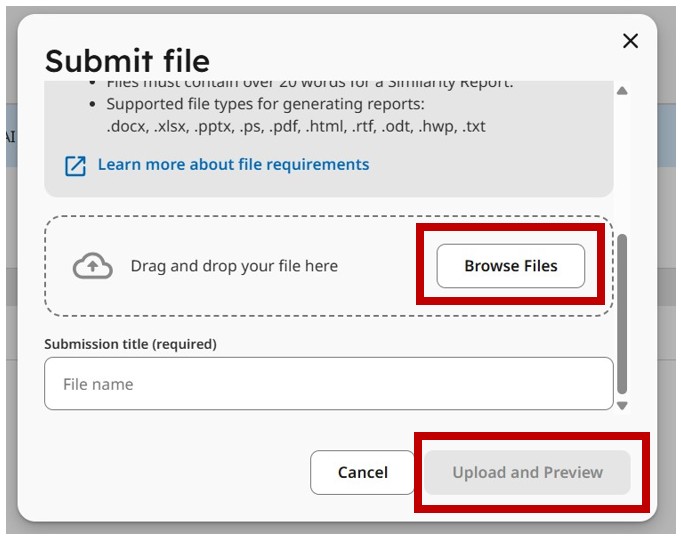
After the file is uploaded, allow some time for processing. You may need to refresh or reload the page after a short while. The Similarity Index and AI report will then be generated automatically and displayed within the assignment.

Turnitin: Plagiarism Check – Students’ Manual
NSU Library
At North South University (NSU), Turnitin is a powerful tool designed to support academic integrity and enhance the quality of student work. However, while the NSU Library provides access to Turnitin for faculty members through Instructor Accounts, students are not directly issued individual Turnitin Student Accounts. Instead, NSU faculty members with Turnitin Instructor Accounts can add students to their own accounts, allowing them to submit assignments, check similarity indices, and access AI-generated reports, provided the faculty grants permission.
Through this setup, Turnitin’s Feedback Studio package enables faculty to provide detailed feedback on student submissions, including comments, suggestions for revisions, and the option to resubmit assignments. Faculty members can also provide grading based on the originality of the work, fostering a productive learning environment that encourages continuous improvement in academic writing.
This structure ensures that students benefit from Turnitin’s comprehensive features-such as detecting similarities in submitted work and generating valuable AI reports-while also allowing faculty to actively guide and assess their students’ writing progress.
1. How to add students to your Turnitin account (For Turnitin Instructor)
NSU faculty members have two options for adding students to their Turnitin classes. The first method allows faculty to directly add students by entering their First Name, Last Name, and Email Address into the Turnitin class. Alternatively, faculty can provide students with the Turnitin Class ID and Enrollment Key, enabling students to self-enroll in the class. Both methods ensure that students can access the Turnitin platform to submit assignments, check similarity indices, and receive feedback from their instructors.
1.1 Adding Students to Your Turnitin Instructor Account Using Email
To manually add a student to your Turnitin classes, first open the assignment you have already created within your Turnitin class.
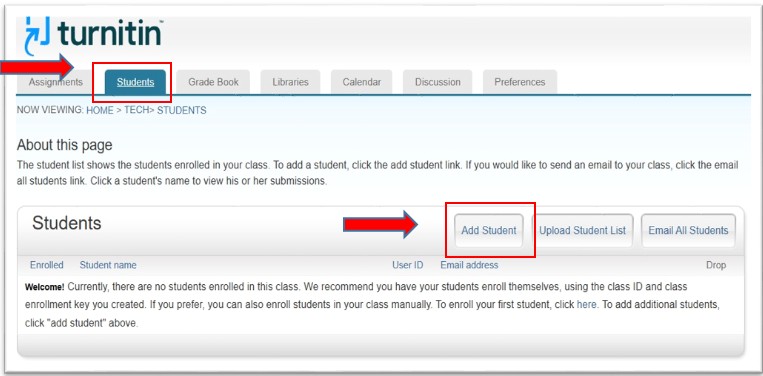
On the assignment page, locate the ‘Student’ tab at the top of the section. This will display two options: ‘Add student’ for adding a single student and ‘Upload student list’ for adding multiple students using an Excel spreadsheet or CSV format.
To add a student individually, click on the ‘Add student’ option and enter the student’s First Name, Last Name, and NSU Email Address.
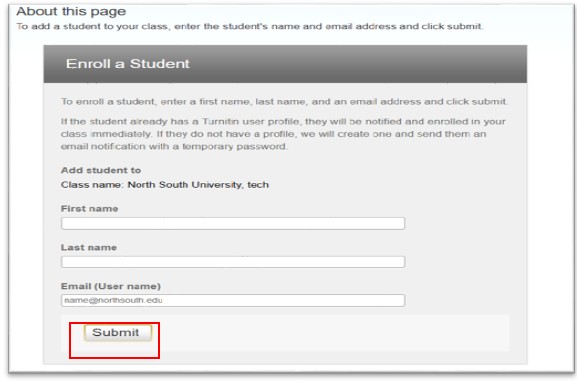
Once the details are entered, click Submit. The student will be added to your class and will receive a confirmation email from Turnitin.
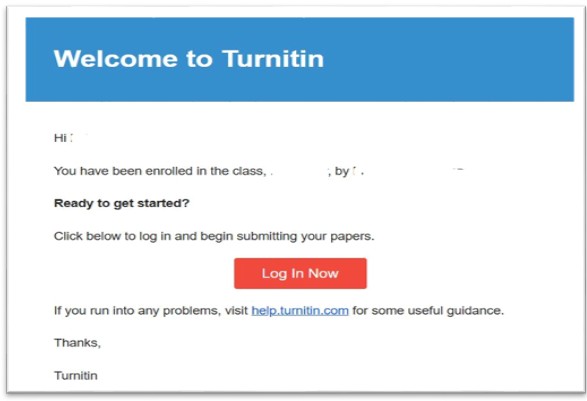
After receiving the Turnitin enrollment confirmation, students need to reset their Turnitin account password. There is no need to register for a new account. To reset the password, use the following link: Click Here.
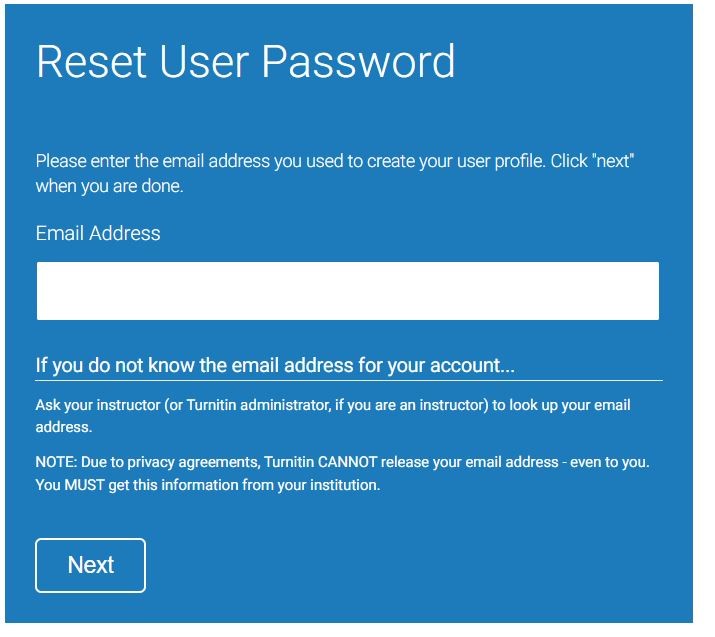
Enter your NSU email address on the password reset page and click Next. A password recovery email will be sent to your inbox. If Turnitin prompts you for a secret answer that you provided when setting up your account, click on “Forget my answer”. This will trigger another password recovery email. Follow the link in the email to reset your Turnitin student password.
You can log in to your Turnitin student account using your email ID and password, which will allow you to access your class and upload assignments for similarity index reports.
1.2 Join Turnitin Student Account Using the Class/Section ID and Enrollment Key
NSU students can join the Turnitin student account using the Class/Section ID and Enrollment Key provided by their course instructor. If your instructor wishes to add you to their Turnitin instructor account, they will share the Class/Section ID and Enrollment Key needed to create your Turnitin student account.
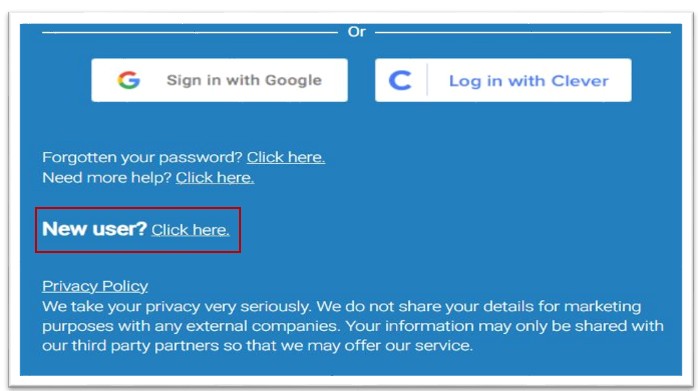
To join, visit Turnitin and click on the Login option. Then, select “New User? Click here”. On the next page, you will be prompted to Create a User Profile.
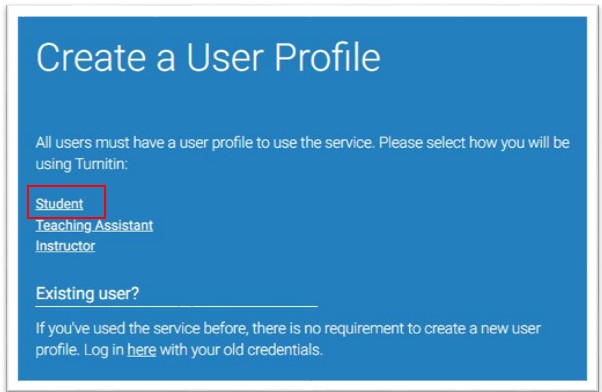
Under the section “Please select how you will be using Turnitin”, choose “Student”.
This will redirect you to the profile creation page, where you will need to enter your Class ID, Enrollment Key, Name, Email, Password, and other required information to create your account.
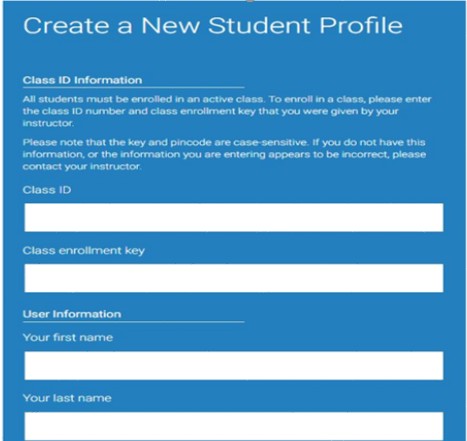

Once your profile is successfully created, you can log in and access your Turnitin student account.
2. Joining Turnitin Classes with an Existing Account (For Students)
Sometimes, NSU students may attempt to create a Turnitin student account using the Class ID and Enrollment Key, but encounter a message stating that they already have a Turnitin account. In this case, students need to reset their Turnitin account password. After resetting the password and logging into the account, they can still join the designated Turnitin class using the Class ID and Enrollment Key.
To do this, first reset your Turnitin account password and log in. On the homepage, you will find the option “Enroll in a class”. Click the link, then enter the Class ID and Enrollment Key to join the class.

3. Submitting Files on Turnitin
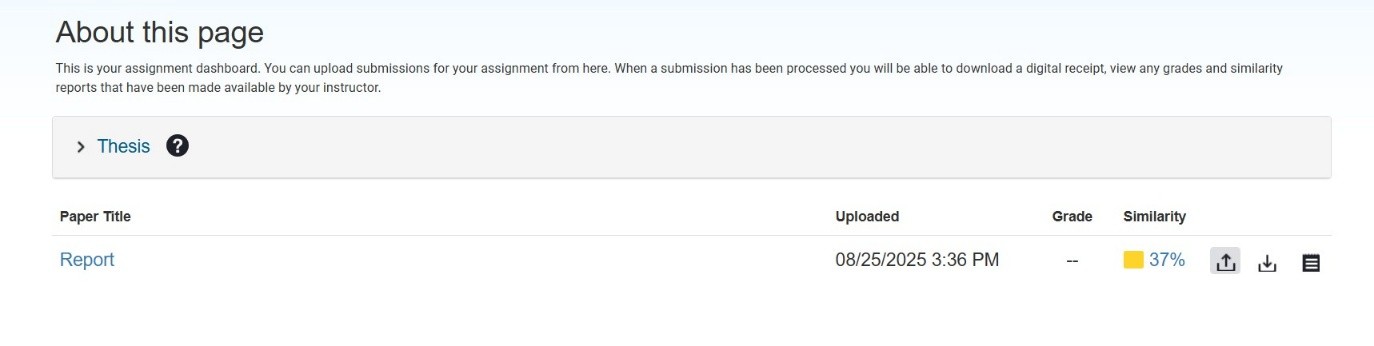
To upload your file for similarity checking on Turnitin, first log in to your Turnitin account using your NSU email and password. Once logged in, you will see a list of your enrolled classes, which includes the Class ID, Course Name, Instructor Name, and Submission Deadlines. Click on the class name to access the assignment.
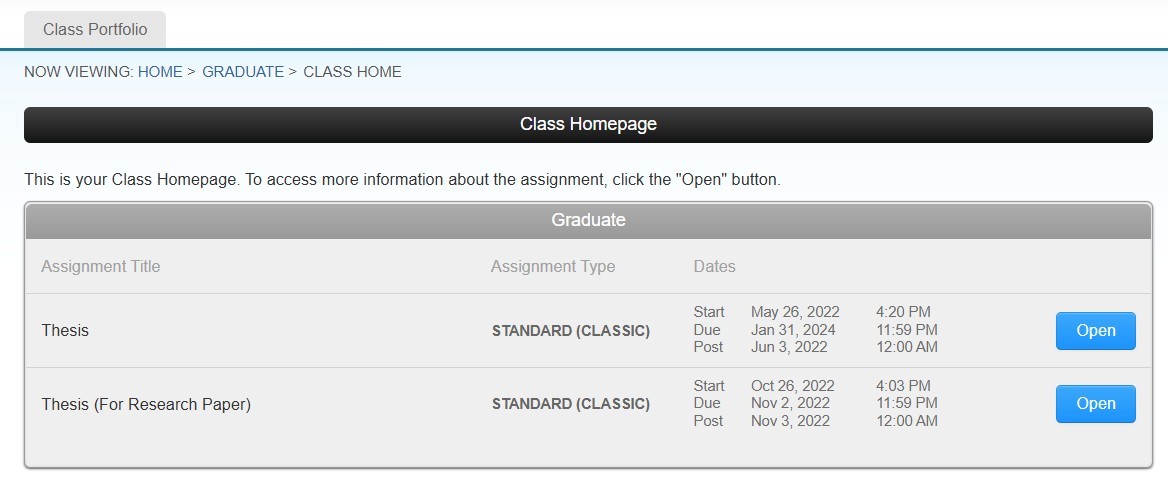
In the assignment section, you will find the designated submission for your course. Click the Open button to enter the submission page.
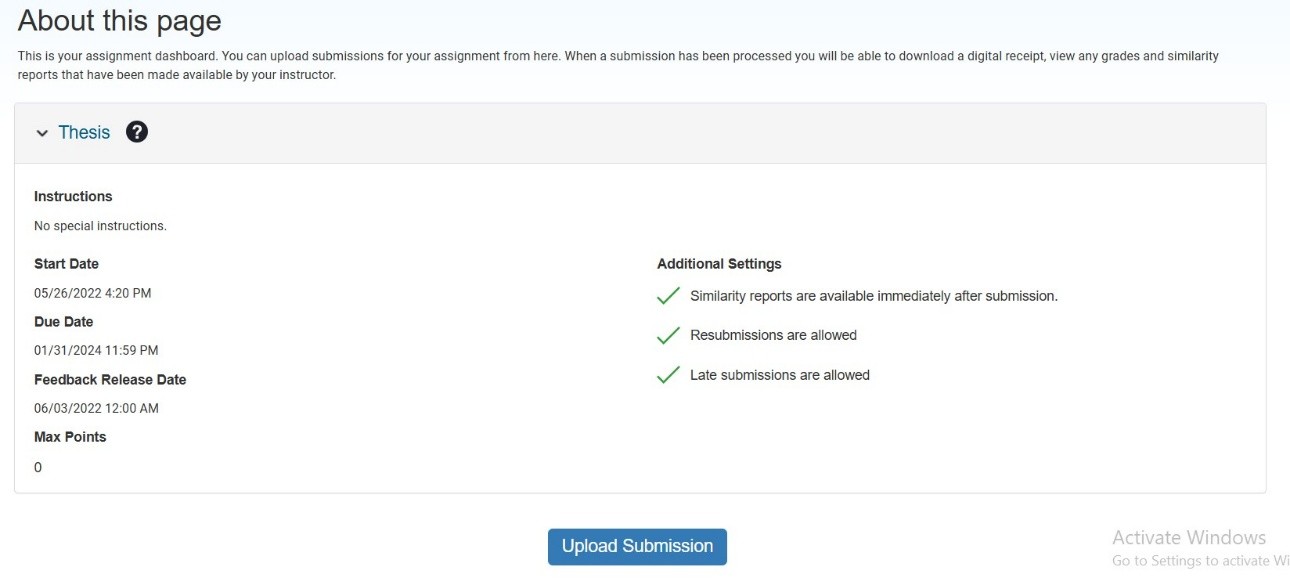
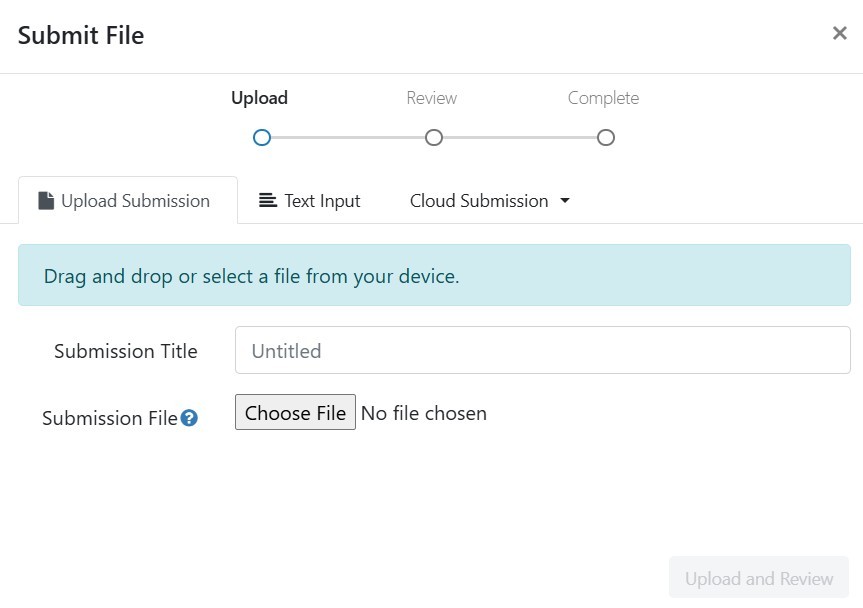
On this page, you will see important information such as faculty instructions, due dates, whether similarity reports are available immediately after submission, resubmission options, and any late submission policies. To submit your file, click the ‘Upload Submission’ button. A new pop-up window will appear where you can select and upload your file.
FAQ 1: I cannot find any classes or assignments on my Turnitin Instructor Account
If you are unable to see your classes or assignments, it usually happens for one of two reasons: either your account has been inactive for an extended period, or Turnitin has flagged unusual activity on your account. In such cases, Turnitin automatically locks the Instructor Account for security and system management purposes.
To resolve this issue and regain access, please send an email to the NSU Librarian, requesting that your account be unlocked. Once your account is reactivated, you will be able to view your classes and assignments again.
FAQ 2: I need a Turnitin Instructor Account. What should I do?
If you are a faculty member at North South University and require a Turnitin Instructor Account, you need to make a formal request to the NSU Library. The process is simple:
- Full-time Faculty Members: You are eligible for a Turnitin Instructor Account for as long as you are employed at NSU.
- Part-time and Visiting Faculty Members: Accounts are valid for one semester only. If you continue teaching in the next semester, you must renew your account by submitting a new request at the start of each term.
How to Request an Account:
Send an email to the NSU Librarian, clearly mentioning your Full Name, Designation, and Department. Once your request is verified, the NSU Library will send you a confirmation email with your Turnitin account activation details.
This ensures that faculty members can access Turnitin’s features, including originality reports, AI detection, Feedback Studio, and grading tools, to support teaching and academic integrity.
FAQ 3: I accidentally submitted a paper to the Turnitin repository, and now it is showing as plagiarized against my own submission. How can I delete it?
If your submitted paper is still available in your Turnitin submission inbox, you can permanently delete it directly from there. This will remove the paper from the repository and prevent it from matching against itself in the future.
However, if you have already removed the submission from your inbox, the process is slightly different. You will need to locate the Submission ID for that paper in Turnitin. Once you have the Submission ID, contact the NSU Library and request permanent deletion of the paper from the Turnitin repository. Using the Submission ID, the library staff can remove the paper completely, ensuring that it no longer appears as plagiarized in similarity checks.